
Shared drive permissions sprawl in Google Workspace rarely looks urgent until the wrong person opens the wrong file. In a justice nonprofit, that can mean client harm, funder concern, and a hard board conversation.
Most teams didn’t create the mess on purpose. Access grew one request at a time, through staff turnover, urgent deadlines, and too many shared folders. A 30-day cleanup gives you a practical way to reduce risk without slowing the mission.
Key takeaways
- Shared drive permissions need a named owner, not a vague sense that “someone handles it.”
- Your first win is visibility. You need to know what Google Drive shared drives exist, what they hold, and who can get in.
- Role-based access beats person-by-person exceptions almost every time.
- External sharing, former staff access, and broad editor rights cause most of the avoidable risk.
- A cleanup only sticks if you add simple habits for review, offboarding, and archiving.
Why shared drive permissions become quiet risk
Justice nonprofits often store sensitive intake notes, case records, partner materials, HR files, and grant documents across shared drives, unlike files kept in a user’s My Drive with clearer individual ownership. That is where trouble starts with shared drive permissions. One over-shared folder can expose more than one team realizes, including metadata associated with sensitive files.
The real problem is not the drive itself. It is weak ownership. If nobody owns access, permissions grow like spare office keys left in old coat pockets. People move on, vendors change, interns finish, yet the access stays.
That pattern shows up in many of the data access sprawl risks for justice organizations. You may see it as clutter. Your board may see it as a trust problem.
If you use Google Workspace, this guide on how to audit shared drives permissions in Google Drive is a useful reference for seeing inherited access and drive-level exposure. The key point is simple: broad access at the top spreads farther than most teams expect.
Days 1 to 7: Inventory first, fix second
Before you remove anything, map what you have using the Admin Console for a bird’s-eye view.

Start with a plain spreadsheet. List each shared drive, its purpose, the main data it holds, the owner, internal members, external members, and Link sharing settings. Also note old drives nobody wants to claim. Those usually deserve attention first. During this inventory, identify where users Move files or Move folders between personal spaces like My Drive and shared drives, as this highlights individual data that needs to migrate to the team environment.
At this stage, don’t debate every file. Stay at the drive and top-folder level. Your goal is to answer five questions:
- What exists?
- Who owns it?
- Who can access it?
- Why do they have that access?
- Does the access still match the work?
Current practice across Google Workspace cleanup efforts favors smaller, purpose-built drives, role-based permissions, and read-only archives for older material. Therefore, flag drives that mix active client work, finance, HR, and board records.
If this review exposes a broader mess in workflow or data handling, you may need more than a file cleanup. A stronger next step is mapping data flows and security risks so you can separate file risk from process risk.
Days 8 to 14: Build a simple access model
Now give each drive a clear rule set.
Keep it simple. Most justice nonprofits only need these access levels: Manager access, Content manager, Contributor, Commenter, and Viewer. Manager access should be rare, and Content manager roles should focus on oversight for key drives. Limit Contributor access to active working teams that need to share files, move files, and move folders. Older or closed matters usually belong in Viewer or Commenter read-only form.
Use groups when you can. “Housing team Contributors” or “Housing team Commenters” is easier to manage than twenty named people. It also makes staff changes far less risky.
This is also the right time to split drives by purpose. Keep active program work separate from archive, finance, HR, and board materials. External partners should never inherit access to more than they need. In most cases, give them folder-specific permissions to share folders and share files with time-bound access.
Avoid “anyone with the link” Link sharing for anything tied to clients, legal strategy, staff records, or partner reporting. It feels fast, but it creates fog.
Days 15 to 21: Revoke excess access with a steady hand
This is the part people avoid. It is also where the risk drops fastest.
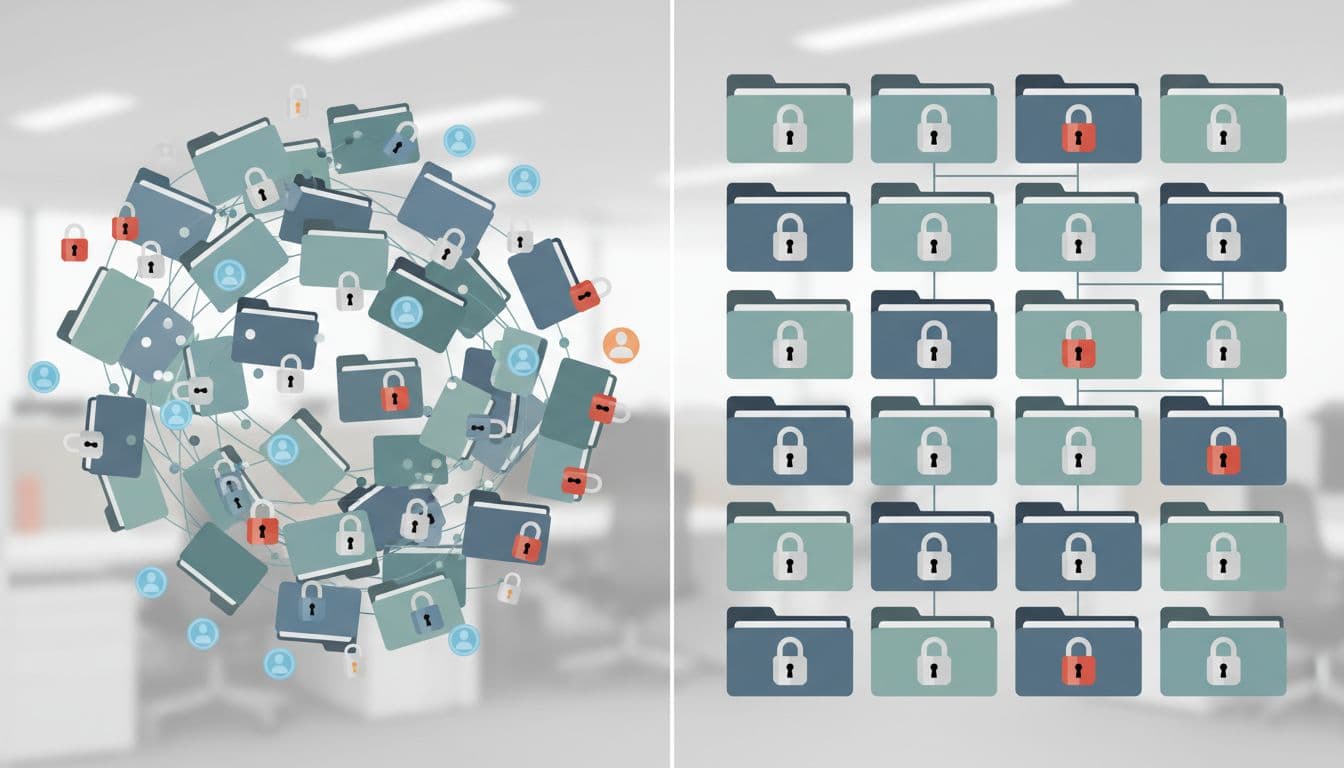
Start with the obvious cases. External users should be the first priority for limited access or removal. Remove former staff, former interns, departed contractors, and partner accounts tied to old projects. Then downgrade broad editor access where view-only is enough.
If access has no clear reason, it should not stay.
Move in batches, not all at once. Tell team leads what will change, when, and who to contact if something breaks. That keeps the cleanup calm and protects day-to-day service. In Google Drive, if you accidentally delete data, you can find it in the Trash and restore files easily.
Pay close attention to personal email addresses in My Drive. Offboarding often removes work accounts, but files shared to personal addresses can linger. For Google Drive teams, this practical guide on revoke Google Drive access when employees leave highlights why that gap stays open unless you close it on purpose. To share files or share folders across different drives without broad permissions, use shortcuts instead of making copies.
Document each change. Otherwise, six months later, you will be arguing over memory instead of facts.
Days 22 to 30: Lock in habits so the mess does not return
A cleanup is not the finish line. It is the start of governance, with access control and sharing settings at its core.
Assign a designated Organizer to every drive as the named business owner. Set one rule for external sharing approval through sharing settings. Add a simple offboarding step that includes shared drive review, not only email shutdown. Then schedule quarterly permission checks using the Admin Console, even if they last only 30 minutes, to review access level and manage files effectively.
Also, move files for closed matters on a regular rhythm to archive them. When old work sits beside active work, people ask for broad access “just in case.” That is how clutter turns back into exposure and weakens access control.
Ongoing efforts to manage files should include regular reviews of access level during these audits.
If this exercise reveals wider privacy, reporting, or handoff issues, the intake-to-outcome clarity checklist can help you turn those findings into a short action plan with owners and next steps.
FAQs about shared drive permissions cleanup
Should you organize drives by team or by case?
Usually by team, program, or function first. Then create tighter substructures or separate restricted drives for especially sensitive matters. If you create a new drive for every small project, ownership gets fuzzy fast.
How often should you review shared drive permissions?
Quarterly is a strong baseline. Also review after staff departures, major grant launches, vendor changes, or a reorg. Access should change when the work changes.
What is the biggest mistake in a permissions cleanup?
Trying to fix everything file by file or overlooking the Trash policy for deleted files. That burns time and stalls momentum. Start with drive ownership, broad membership, external access, and editor rights at the right access level. Use manager access for administrative roles and content manager for content-heavy roles. Advanced users can leverage the Drive API, the Drive UI, or tools like Google Apps Manager for bulk updates. Those choices reduce the most risk first.
What about partner organizations that need access?
Give them the minimum access level they need, such as Contributor for project-based access, for the shortest time that works. Keep partner access separate from internal team access, and review it at the end of each project or referral cycle.
Shared drive permissions are like office keys. If you never collect them, you stop knowing who can walk in.
A 30-day cleanup will not solve every governance problem. Still, it gives you clearer visibility, stronger ownership, and fewer surprises when the pressure is high, all through smarter shared drive permissions.